
Back to All Tutorials
How PicsDrop Works
PicsDrop step-by-step video watch page. Learn how to configure your account.
Video Walkthrough Transcript & Guide
PicsDrop is a high-performance client delivery platform and studio CRM designed for modern event, wedding, and portrait photographers. By replacing outdated delivery methods like shared drive folders or USB drives, PicsDrop delivers an interactive, branded client experience powered by real-time artificial intelligence.
Here is a breakdown of the core platform workflow:
- Step 1: Event Configuration: Photographers create an event on the dashboard, specifying the event name, date, and venue location. The setup supports custom visibility settings (such as Public
ANYONE_WITH_LINKor ProtectedINVITED_ONLY), password access requirements, automated logo watermarking (customizable size, opacity, and positioning), and toggle options for guest uploads or bulk downloads. - Step 2: Media Upload Queue: Photographers use the drag-and-drop file uploader to load high-resolution images. The client-side uploader manages concurrent file streams, generates fast low-resolution previews, and tracks upload progress live before triggering server-side indexing.
- Step 3: AI Facial Recognition Indexing: As soon as photos upload, a background job extracts facial vectors from the images. PicsDrop stores these 512-dimension vector embeddings in a PostgreSQL database using pgvector extensions to allow instant matching and search calculations.
- Step 4: Venue QR Code Distribution: The dashboard generates a branded sharing card with a unique QR code. Photographers can download and print this QR code sheet for table cards, standees, or display screens at the venue. Guests scan the code, upload a quick selfie, and instantly view a personalized gallery of every photo they appear in.
Other Video Tutorials

How PicsDrop Works

Dashboard Overview & Analytics

Create Event, Upload Photos & Share QR Code

Smart Booking & Calendar Management

Notes & Reminders Management

Website Builder for Photographers

AI Face Recognition Photo Sharing App for Photographers

How to Connect Your Camera to PicsDrop Using FTP | Complete Setup Guide

How to Customize Your Event Banner on PicsDrop | Step-by-Step Tutorial

How to Enable One Event QR Code on PicsDrop | Step-by-Step Tutorial

How to Design a Custom QR Standee on PicsDrop | Step-by-Step Tutorial
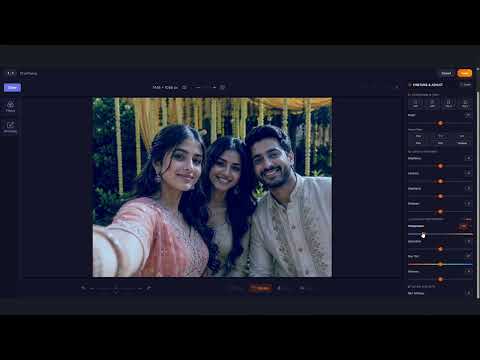
How to Use Photo Selection Feature in PicsDrop | Step-by-Step Tutorial

How to Sell Photos Online with PicsDrop | Photo Selling Feature Tutorial

How to Manage Store & Orders on PicsDrop | Step-by-Step Tutorial

How to Create an Event - TUTORIAL | PICSDROP

Event Details - TUTORIAL | PICSDROP

Upload Media - TUTORIAL | PICSDROP

Media Selection Feature - TUTORIAL | PICSDROP

Gallery Theme - TUTORIAL | PICSDROP

Event Access & Share - TUTORIAL | PICSDROP

Team Permission Feature - TUTORIAL | PICSDROP
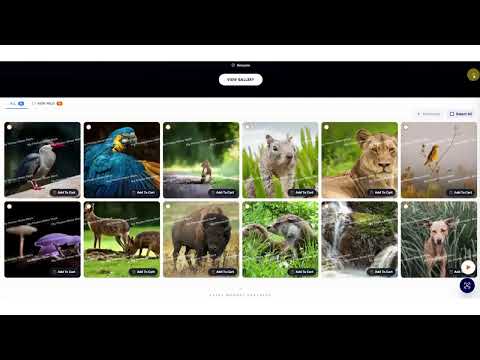
Photo Selling Feature - TUTORIAL | PICSDROP
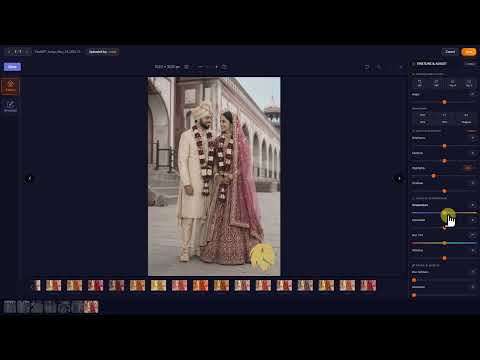
Photo Edit Feature - TUTORIAL | PICSDROP
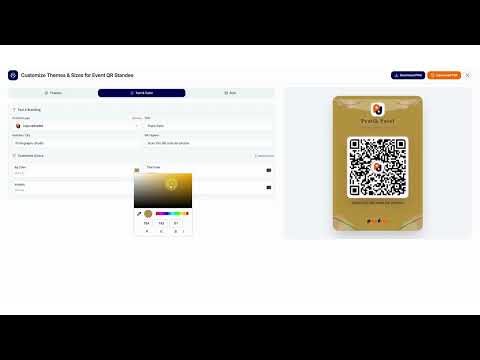
Universal QR Feature - TUTORIAL | PICSDROP

Sold Media Feature - TUTORIAL | PICSDROP

Invoice Business Details - TUTORIAL | PICSDROP

Invoice - TUTORIAL | PICSDROP

Expense Feature - TUTORIAL | PICSDROP

Refer & Earn - TUTORIAL | PICSDROP